
Execute a Batch Action
Batch Actions allow you to execute a specific support action by importing a file with the information required to execute the action.
This topic assumes that you have already created the Batch Action, and that you have a properly formatted CSV file available to import.
To execute a Batch Action:
-
Select Members from the top navigation bar, then select CSR > Batch Actions from the side navigation menu. The Batch Actions screen is displayed.
-
On the Batch Actions screen, search for the desired Batch Action (see Search for a Batch Action for more information).
-
Next to the desired Batch Action, click the Run icon. The platform adds the job to the processing queue.
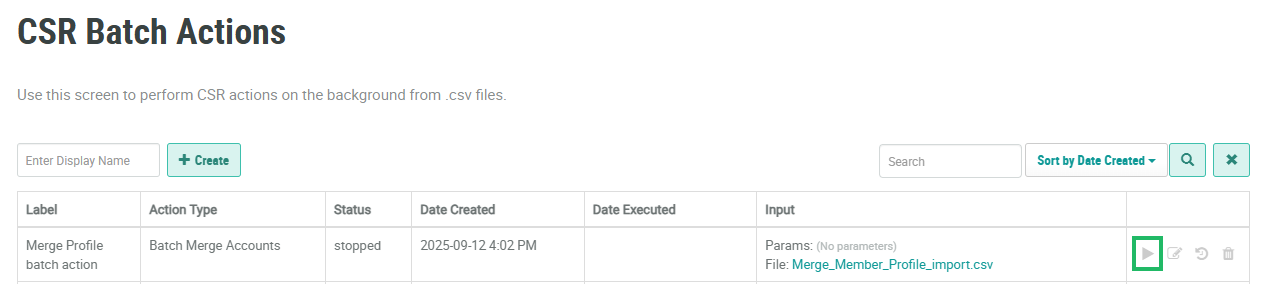
While the job is processing, the Run icon changes to a Stop icon. You can stop an in-progress Batch Action by clicking the Stop icon.
After executing the Batch Action, you can check its history to see its processing status or to view an error message if the process failed. For more information see View Batch Action History.
